Home › Installation › MAG / STB
Set up CanadTV on a MAG or STB box
MAG boxes remain among the most robust streaming media players you can buy. They are quick, the interface is plain and responsive, and channel switching is close to instant. Here is how to point one at your CanadTV portal.
Why a MAG box
Purpose-built hardware beats a general-purpose stick
An Infomir MAG unit does one job. There is no app store competing for memory, no background updater, no assistant listening for a wake word. What you get instead is speed, simplicity and a very stable picture — which is exactly what a set-top box should offer.
The user interface is simple and responsive, and moving between channels is noticeably quicker than on a shared-purpose device. For households that watch live television rather than browsing apps, it remains the most reliable way to take a subscription.
- Dedicated hardware with nothing competing for resources
- Quick channel switching and a low-latency guide
- Portal-based configuration, entered once and left alone
- Works on the same single-device allowance as every CanadTV plan
Have your welcome email to hand. A MAG box is configured with a portal address rather than a username and password pair. If your email contains only server, username and password, write to the desk and we will issue the matching portal URL for your line.
Using something other than a MAG? See the guides for Android phones, Fire TV sticks, Samsung and LG televisions or Windows PCs.
Not subscribed yet? Our introductory thirty days cost CA$10.99 and cover everything below.
Five steps to a configured portal
Screens differ slightly between firmware revisions, but the path through the menus is the same on every MAG generation.
-
Open the settings menu
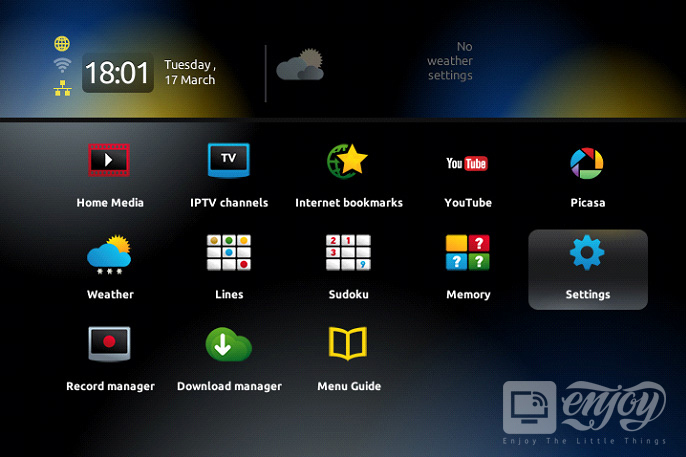
Power the box on and wait for the main portal screen to finish loading. Press the SETUP or SET button on the remote to reach the settings area. On most MAG firmware revisions this is the small gear icon in the tile grid.
-
Move into system settings
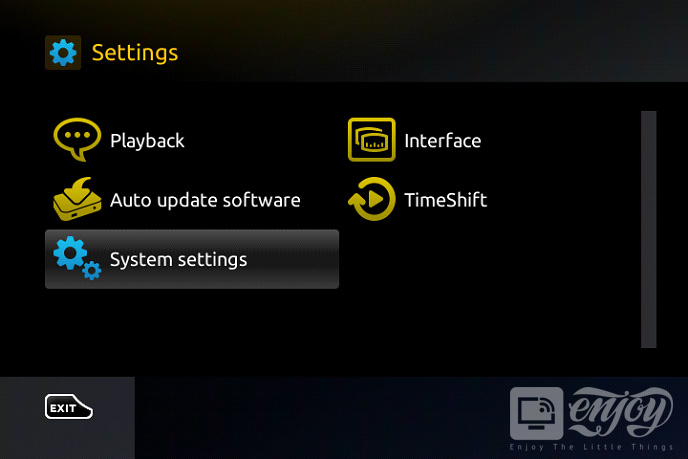
From the settings list, choose System settings, then open Servers. This is where the box stores every portal address it knows about.
-
Select the portals entry
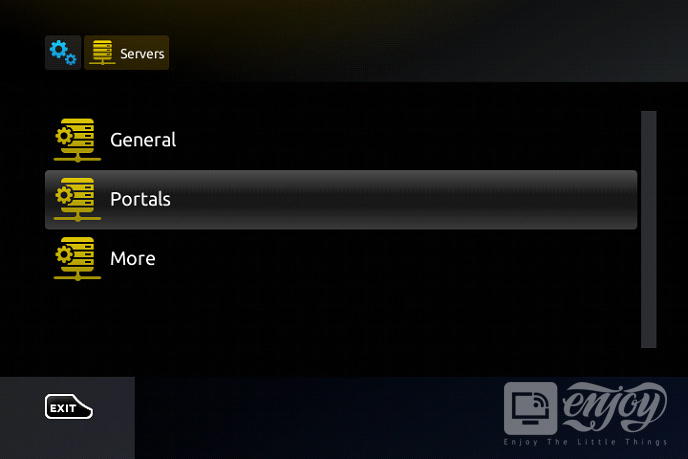
Inside Servers you will see General, Portals and More. Choose Portals — that is the screen where your CanadTV portal address goes.
-
Enter the portal name and address
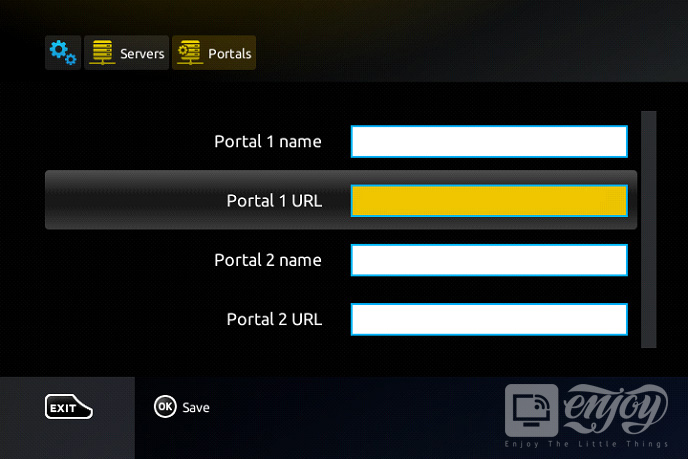
In Portal 1 name, type a label you will recognise such as CanadTV. In Portal 1 URL, enter the portal address exactly as it appears in your welcome email, including the port number. Press OK when both fields are filled.
-
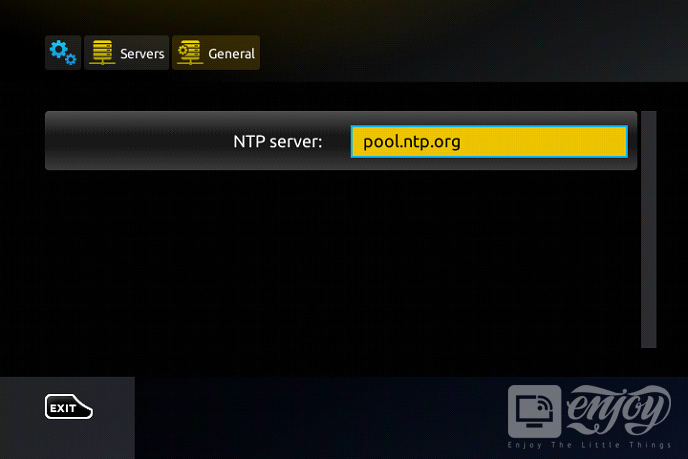
Set the time server and restart
Press EXIT and choose General. In the NTP server line enter pool.ntp.org, or us.pool.ntp.org if you are in North America — a wrong clock is the most common cause of a portal that refuses to load. Press OK to save, then press EXIT twice and restart the portal. Your MAG box is now configured.
If the portal will not load
- Check the clock first. An unset or wrong NTP server stops portal authentication dead. This causes more MAG support tickets than everything else combined.
- Re-read the URL character by character. A missing colon before the port number, or a trailing slash, produces exactly the same blank screen as a wrong address.
- Confirm the box has network. The network icon in the top-left corner of the portal screen should be lit before you blame the address.
- Restart the portal rather than the box. EXIT twice and reload is faster, and it rules out a stale cached portal.
Still stuck? Send the desk your MAC address through the contact page and we will verify the line from our side.
After it is working
Once the grid loads, spend five minutes tidying it. Hide the language groups you will never open, and mark your regular channels as favourites so they sit at the top. The channel lineup page lists everything now available to you.
For a broader walkthrough covering every other platform, including the IBO Player pairing model used on phones and smart televisions, read the main IBO Player guide.
“Ninety per cent of MAG problems are a wrong clock. Set the NTP server properly and the box behaves for years.”
CanadTV support desk, Ottawa